Automations
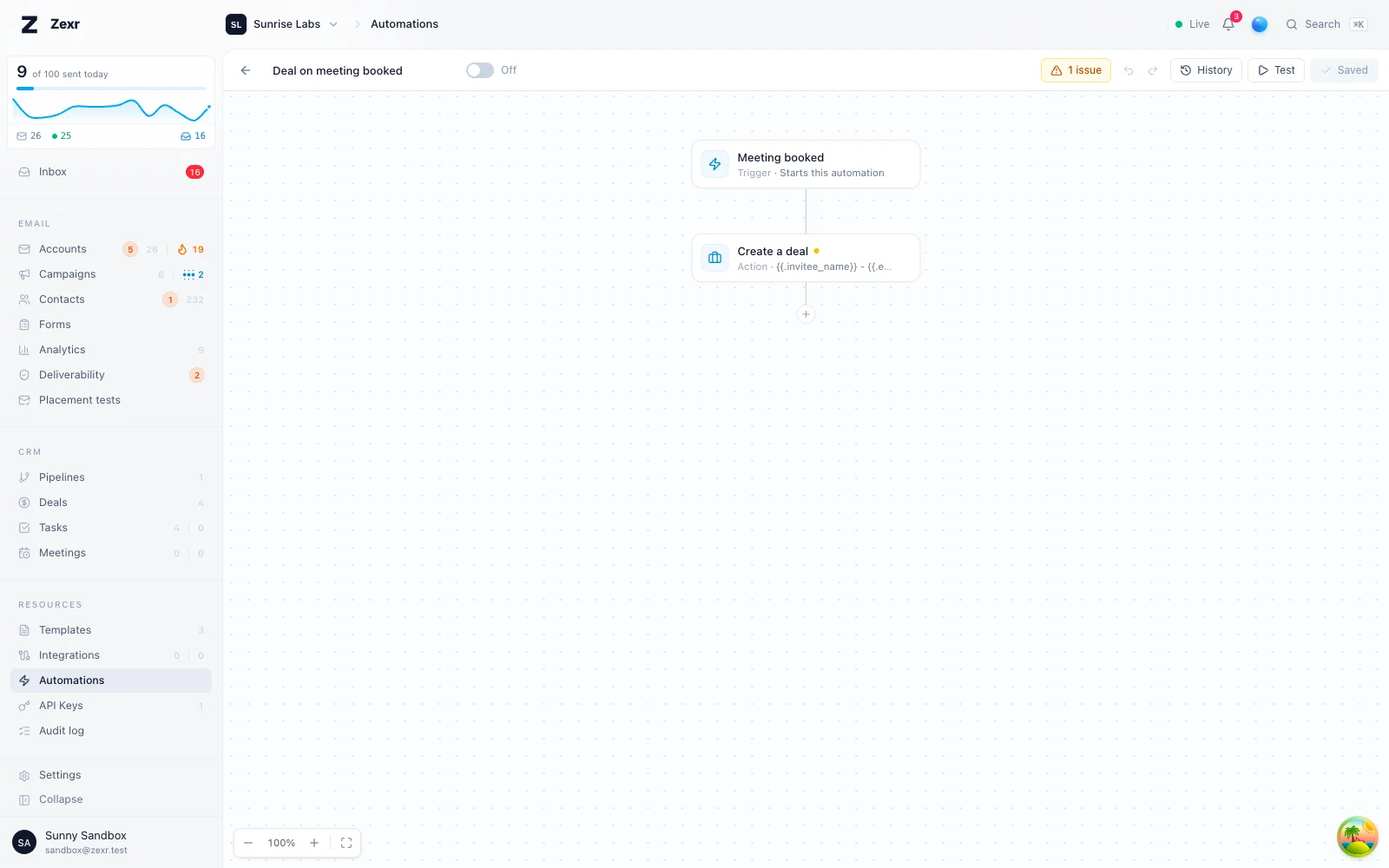
A visual flow builder: a trigger event connected to action steps across your integrations.
An automation does work for you when something happens: a reply arrives or a meeting is booked, and Zexr posts to Slack, pushes to your CRM or labels a contact. You build it on a canvas, with no code.
Build an automation
Open the Automations tab and choose New automation.
Pick the trigger it should run on, such as Reply received.
Press + to add actions, and an If / else wherever the flow should branch.
Press Test to dry-run it against sample data.
Press Save and make sure the automation is switched on.
Good to know
- Nothing takes effect until you Save. Test saves first, then dry-runs.
- An automation that is off never fires, even from a campaign step.
- A test sends no messages and changes no records, but AI steps run for real and spend credits.
- One failing step never blocks the rest. The failure is recorded in History.
- Bulk file imports and sheet syncs do not fire Contact created.
An automation is a flow on a canvas: one trigger (a reply arrives, a meeting is booked) runs one or more actions (post to Slack, push to your CRM, label a contact), with IF conditions in between to branch. No code, though an advanced mode accepts a free-form condition.
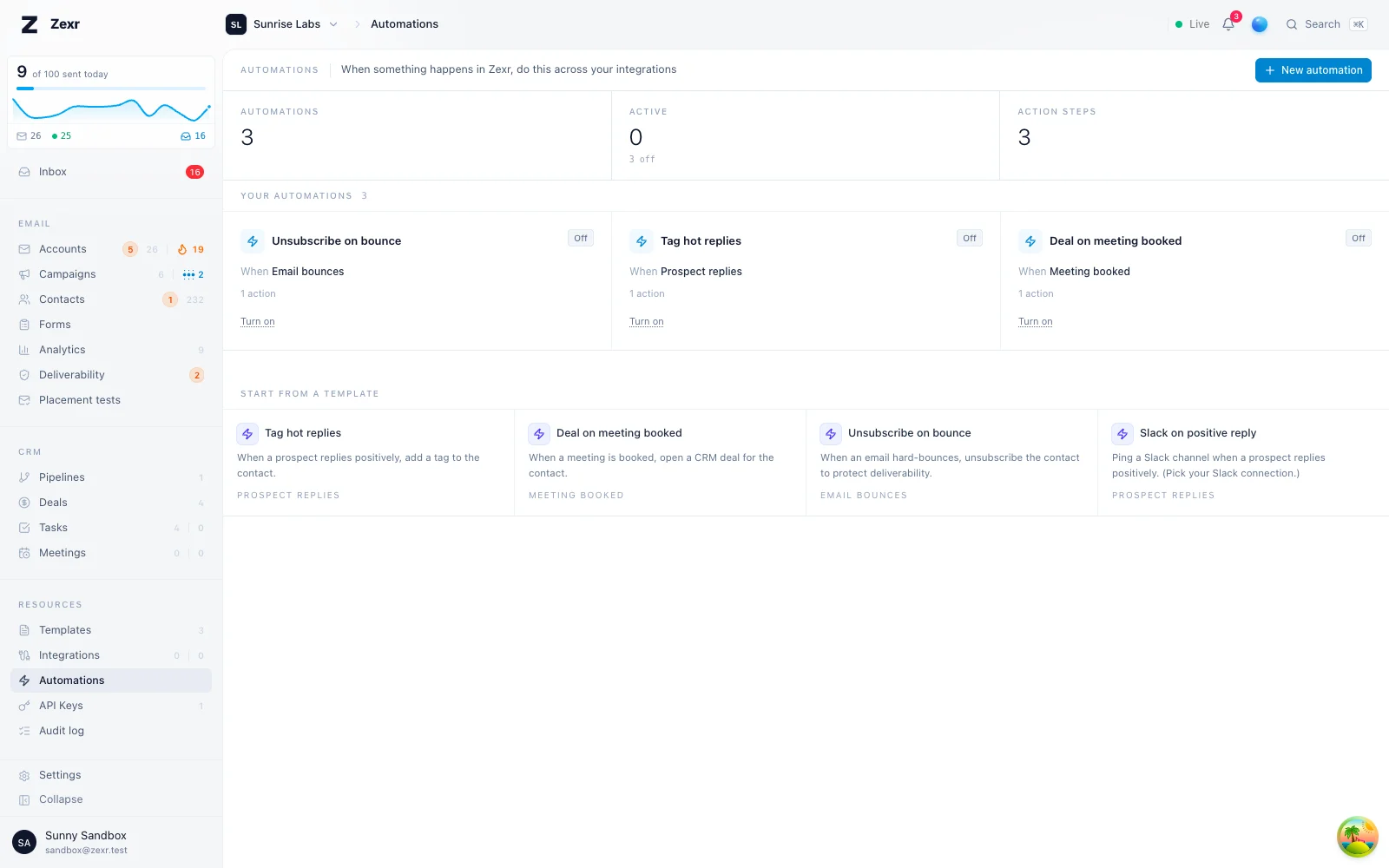
A template opens as a draft that is switched off, with the specifics it cannot know left for you: which tag, which pipeline and stage, which Slack connection. A draft saves with steps still unset; switching it on requires every step to be set, and a draft never runs.
Open the Automations tab. Each automation has a name, an on/off toggle, and a canvas. Off never fires, even from a campaign step.
The canvas lays itself out: the Trigger sits at the top and every step runs top to bottom below it. You never draw lines or arrange cards. Scroll with two fingers or drag empty space to move around; pinch, or hold Ctrl/Cmd and scroll, to zoom. Shift+1 fits the whole flow and Cmd/Ctrl+0 returns to 100%.
- Hover any line and press its + to insert a step there, or press the + at the end of a path to add one after it. The picker is searchable and works from the keyboard (arrows,
Enter,Esc). - An If / else splits into Yes and No columns. An AI switch gets one column per case. Inserting either one in the middle of a path keeps the steps that were below it on the first branch.
- Go to a step (at the end of a path) continues that path at a step already in the flow, shown as a chip. Hover it to see where it leads. Only steps that cannot loop back are offered.
- End here stops a path explicitly.
- Click a step to edit it in the side panel. Adding or removing a step moves the rest of the flow into place with a short animation. Its ⋯ menu duplicates it, adds an on-error path, or deletes it. Deleting a step reconnects what was before it to what came after; deleting a branching step also removes the steps only its branches led to, after asking.
- A step that still needs setup has an amber dot by its name (hover it for what is missing), and the issues button in the header lists every one. Save is refused until they are fixed.
Cmd/Ctrl+Zundoes andShift+Cmd+Z(orCtrl+Y) redoes any edit,Cmd/Ctrl+Ssaves, andDeleteremoves the selected step.- The canvas is collaborative: teammates' cursors and their selected steps, outlined in their color. Press
/to chat. See Collaboration.
Save before it runs
Triggers, conditions, and actions only take effect after Save. Test saves first, then dry-runs.
| Trigger | Fires when |
|---|---|
| Reply received | A contact replies to a campaign email |
| Contact created | A new contact is added by hand, through the API, by a form or by an automation (bulk file imports and sheet syncs stay quiet, see below) |
| Form submitted | A hosted form receives a submission |
| Meeting booked / rescheduled / canceled | A Calendly or Cal.com meeting changes |
| Email bounced | A campaign email bounces |
| Unsubscribed | A contact unsubscribes |
| Warmup health changed | A mailbox's warmup health state changes |
| Deliverability complaint | A spam complaint is recorded |
| Inbound webhook | An external system POSTs to this automation's unique URL |
| Campaign action | A campaign sequence reaches a "Run automation" step |
Each trigger carries its own event data (a reply carries contact email, reply intent, classifier confidence, and the inbox tagging verdict when tagging is on). Those are the values your conditions test and your action text inserts. Full per-trigger variable list: Personalization & expressions.
Campaign action never fires by itself; it runs only from a campaign step, still evaluating your conditions.
Contact created fires once per new contact, with the contact's fields and its first-touch source, so a condition can branch on source (a form, the API, an automation) or on any field. A contact that already existed and was only updated does not fire it. Bulk arrivals are deliberately silent: a file import or a Google Sheets sync of ten thousand rows would otherwise run ten thousand flows and flood every webhook, so those paths never raise it, and neither does a single API request adding more than 100 contacts.
Inbound webhook
Pick the trigger and save, and the editor shows a unique URL. Anything that can send HTTP POSTs JSON to it.
- The JSON body becomes the payload:
{"email":"a@b.com"}gives you{{.email}}. A non-object body is exposed as{{.body}}. - The URL is the credential. It carries a high-entropy token, so treat it as a secret, send it over HTTPS, and rotate it (switch the trigger away and back) if it leaks.
- The request returns immediately and the flow runs in the background, so a slow action never blocks the caller.
- Keys starting with an underscore are stripped; the body is capped at 1 MB.
An If / else splits into a Yes column and a No column. Only the matching branch runs; an empty branch just ends.
Pick a field, an operator, and a value. Fields depend on the trigger, so they are always meaningful.
| Field type | Operators |
|---|---|
| Text | is, is not, contains, is present |
| Number | ≥, ≤, is, is present |
| Choice (enum) | is, is not, is present |
| List | contains, is present |
A list contains a value only when one item matches it whole, ignoring case, so a reply labelled "Not interested" does not pass contains Interested. A list with no items is not present.
Filtering replies on inbox tagging
With inbox tagging on, Reply received also carries the verdict tagging stored for that message, so a reply automation filters on the same labels the inbox shows:
| Field | What it holds |
|---|---|
ai_labels | The labels on the message (Interested, Meeting, Pricing, Question, Wrong person, and your own question labels) |
ai_intent | What a human reply wants: agreed, scheduling, wants_pricing, wants_info, wrong_person, not_now, not_interested, opt_out, and the rest. Empty when tagging could not read it confidently |
ai_intent_confidence | How sure tagging was of ai_intent, 0 to 1 |
ai_kind | What the message is: human_reply, auto_reply_ooo, auto_reply_ticket, cold_inbound, internal. Empty when tagging was not sure |
ai_relevance | The 0 to 100 relevance score |
ai_needs_review | Tagging flagged the message for a person to check |
A reply tagging never judged (tagging off, or a message it skipped) carries none of these keys. Test ai_needs_review with is present to tell a judged reply from one with no verdict: this key is present even when its value is false. Do not use ai_labels, ai_kind or ai_intent for this check, because a judged reply can have an empty list or an empty string. intent and confidence are still the workspace keyword list's reading, unchanged. To be told about every interested lead, branch on ai_labels containing Interested, Meeting, Pricing or Question, or use one expression:
or (has .ai_labels "Interested") (has .ai_labels "Meeting") (has .ai_labels "Pricing")The built-in Slack and Discord messages name the labels in their title when a reply has them.
Three special conditions work with any trigger:
- Ask AI (yes/no): a plain-language question about the event ("Is this reply asking about pricing?") picks the path. Templated, so you can drop in
{{.field}}. One credit per evaluation; if the model can't answer or you are out of credits, the no path runs and History shows why. See AI steps in automations. - Random split: a set percentage (
1%to99%) down the yes path, deterministic per event so re-deliveries never flip it. - Advanced expression: a free-form condition, taken when truthy.
and (gtf .confidence 0.8) (eq .intent "positive")Comparisons (eq, gt, lt), numeric coercion (gtf, ltf, add, sub, mul, div), logic (and, or, not), and text helpers (contains, lower) are available. A broken or empty expression is false, so a malformed condition never silently passes, and it is validated on save.
Each action node picks a Run target (an integration, or Zexr built-in) and an Action.
| Integration action | What it does |
|---|---|
| Send a Slack / Discord message | Posts to a channel (Slack needs #channel) |
| Send a webhook | HTTP request to a URL you provide |
| Create / update HubSpot contact, Pipedrive person, Salesforce record, Close lead | Upserts the record. In HubSpot mode or Pipedrive mode contacts already sync on their own, so that CRM's action is not needed and steps aside. Salesforce finds the Lead or Contact, or creates one, with the connection's rules |
Slack, Discord, and webhook actions take an optional message template. Slack and Discord arrive as a branded card in Zexr's accent color with contact and subject fields, not a plain line. Slack shows the text as written: <, > and & are escaped, so a subject or template cannot form a Slack link or mention.
| Built-in action | What it does |
|---|---|
| Create or update contact | Makes a contact from the event's fields, or enriches the one with that email, then labels it and enrols it in a campaign. See Lead intake |
| Add to campaign | Enrols the event's contact in a campaign; a finished campaign restarts through the usual launch checks (a refusal is noted in its activity log and the lead waits), one waiting for leads picks up straight away |
Saving an automation with either of these actions turns on the picked campaign's Keep running for new leads setting, so the campaign waits for the next run instead of finishing between them.
| Add / remove a label | Adds or removes a label on the contact |
| Label the conversation | Applies labels to the conversation the contact replied on |
| Create a task | Assigned to the workspace owner |
| Create a deal | In a chosen pipeline and stage |
| Move the deal stage | Moves the contact's most recent open deal in that pipeline |
| Unsubscribe the contact | Only when the event carries a campaign |
| Set variables | Computes named values from templates for later steps to reuse as {{.name}} |
| Fire event | Publishes a CUSTOM_EVENT to the realtime gateway |
| AI step / AI switch | An agent or single-shot AI node, and AI-decided routing. See AI steps |
Three constraints worth knowing: Move the deal stage does nothing if the contact has no open deal in that pipeline, Unsubscribe needs an event carrying a campaign, and Label the conversation works only on a Reply received automation, since it needs a thread to label.
In HubSpot mode or Pipedrive mode, the pipelines these actions pick from are that CRM's pipelines, and the tasks and deals they write are sent on to it through its sync queue. In Pipedrive a task becomes an activity.
Add to campaign and every other contact action need a contact to act on: the event must carry contact_id or contact_email, which every Zexr trigger does. On an inbound webhook, put Create or update contact first and the contact it writes becomes the event's contact for the steps after it.
Lead intake
Any system that can send an HTTP request can create contacts in Zexr without an API client: an Inbound webhook trigger followed by a Create or update contact action.
- Pick the Inbound webhook trigger, save, and copy the URL.
- Add Create or update contact. Each field is a template over the JSON the caller sends: an email of
{{.email}}, a first name of{{.first_name}}, a custom fieldteam_sizeset to{{.answers.team_size}}. Pick the labels and the campaign the lead lands in. - Point the sender at the URL. Zapier's Webhooks by Zapier, Make's HTTP module, n8n's HTTP Request node, a Typeform or Tally webhook, or your own code.
The action matches an existing contact by email, so re-sending the same lead updates it instead of duplicating it. A blank rendered value never erases a field the contact already has. If the contact already exists decides whether an existing contact is enriched and enrolled (the default) or left alone. New contacts carry automation as their first-touch source, with the automation's name as the detail.
Facebook, Instagram, LinkedIn and TikTok lead forms
Meta, LinkedIn and TikTok deliver lead-form submissions to Zapier, Make and n8n in real time. Either route them through the Zexr app there with its Create or Update Contact and Add to Campaign actions, or send them to an inbound webhook automation as above. Both end the same way: a contact with the ad's answers as custom fields, tagged and enrolled in the campaign that follows up from your mailbox. See Zapier, Make and n8n.
Lead-form campaigns produce leads in bursts, and the follow-up still goes out from your mailboxes under their daily caps and spacing. A day of two hundred leads on one mailbox capped at fifty is a four-day send; the campaign's recipients-versus-capacity estimate shows it. Add mailboxes rather than raising caps.
A flow that creates a contact can be the reason a Contact created flow runs. That is allowed, and bounded: an event raised by an automation's own action carries how many hops led to it, and after five hops no further automation runs, so two flows cannot feed each other forever.
Fire event is the inverse of the inbound webhook: your app subscribes over the websocket with an API key holding REALTIME_SUBSCRIBE and receives { name, payload }, so you get events without hosting a public URL. See Realtime events.
The on-error branch
Choose Add an error path from an action's ⋯ menu to handle failures (a rejected Slack message, a CRM timeout). The action then splits into a Then column and an On error column.
- With an on-error branch connected, a failure follows it and the run is not marked failed, like a try/catch. The normal path is skipped.
- Without one, the failure is recorded in History and the run is marked errored, but the flow continues down the normal path best-effort, so one bad step never blocks the rest.
- A dry run never fails an action, so Test always shows the normal path.
Templating
Text fields (messages, webhook URLs, deal names, task titles) accept trigger variables as {{.key}}, with clickable chips in the builder to insert them:
New reply from {{.contact_email}} on {{.campaign_name}}Unknown tokens render empty rather than failing.
Test saves the canvas and dry-runs it against sample data: no messages sent, no records changed. It shows the exact path taken, on the canvas (each step it reached is marked, the rest fade back) and as a list with a preview of each action. AI steps are the exception, running for real so you see actual output, which spends one credit per AI step.
History shows recent real runs: success or error, start time, and per-step results (error text on failure, a short summary on success). It updates live as the automation fires.
Best-effort by design
Runs are best-effort and bounded against loops, so one failing step won't block the rest. The run is still recorded as errored so you can see what went wrong.